Your dashboard is the control room for your shop. It's where you add products, handle orders, change how your shop looks, and see how you're doing. Here's the lay of the land.
The five main areas
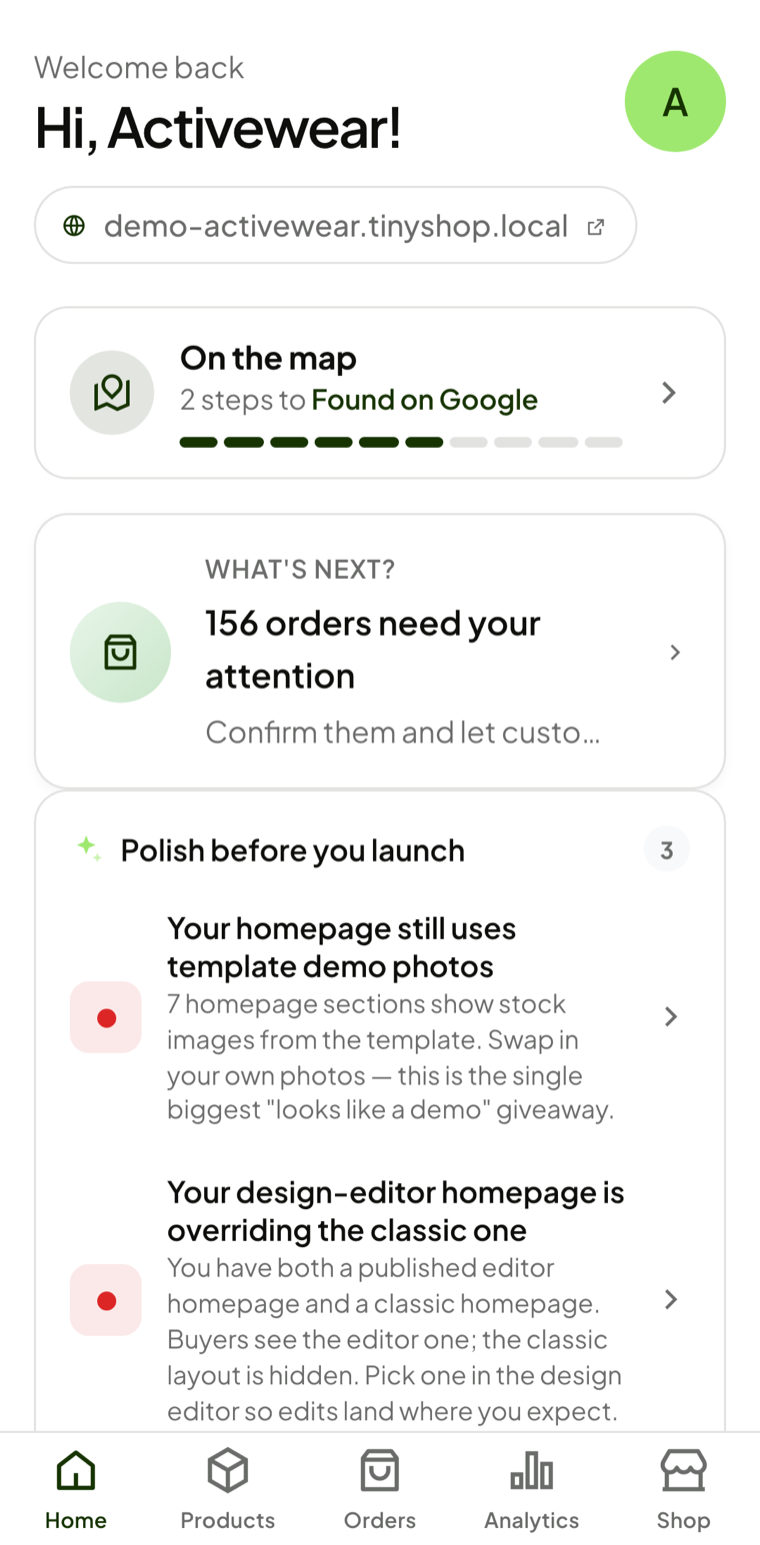
On a phone these sit along the bottom of the screen; on a computer they run down the left-hand side. Either way, they're your everyday areas:
- Home — Your starting point. Shows orders that need attention, low-stock items, and tips to polish your shop.
- Products — Add, edit, and organise the items you sell.
- Orders — See new orders and update them as you pack and deliver.
- Analytics — Track visitors, views, and sales over time.
- Shop — Your shop's settings: name, contact details, payments, delivery, and more.
Everything else: the Manage area
Scroll down on the Home screen and you'll find Manage — quick links to everything else you might need:
- Categories — Group your products so they're easy to browse.
- Coupons — Create discount codes for your customers.
- Customers — See who's bought from you.
- Reviews — Approve and reply to customer reviews.
- Pages — Add pages like “About us” or “Returns”.
- Blog — Write posts to bring in visitors.
- Delivery — Set your delivery zones and fees.
- Menu — Choose what appears in your shop's navigation.
- Collections — Build your own content lists.
- Import — Bring in products from another website.
On a computer
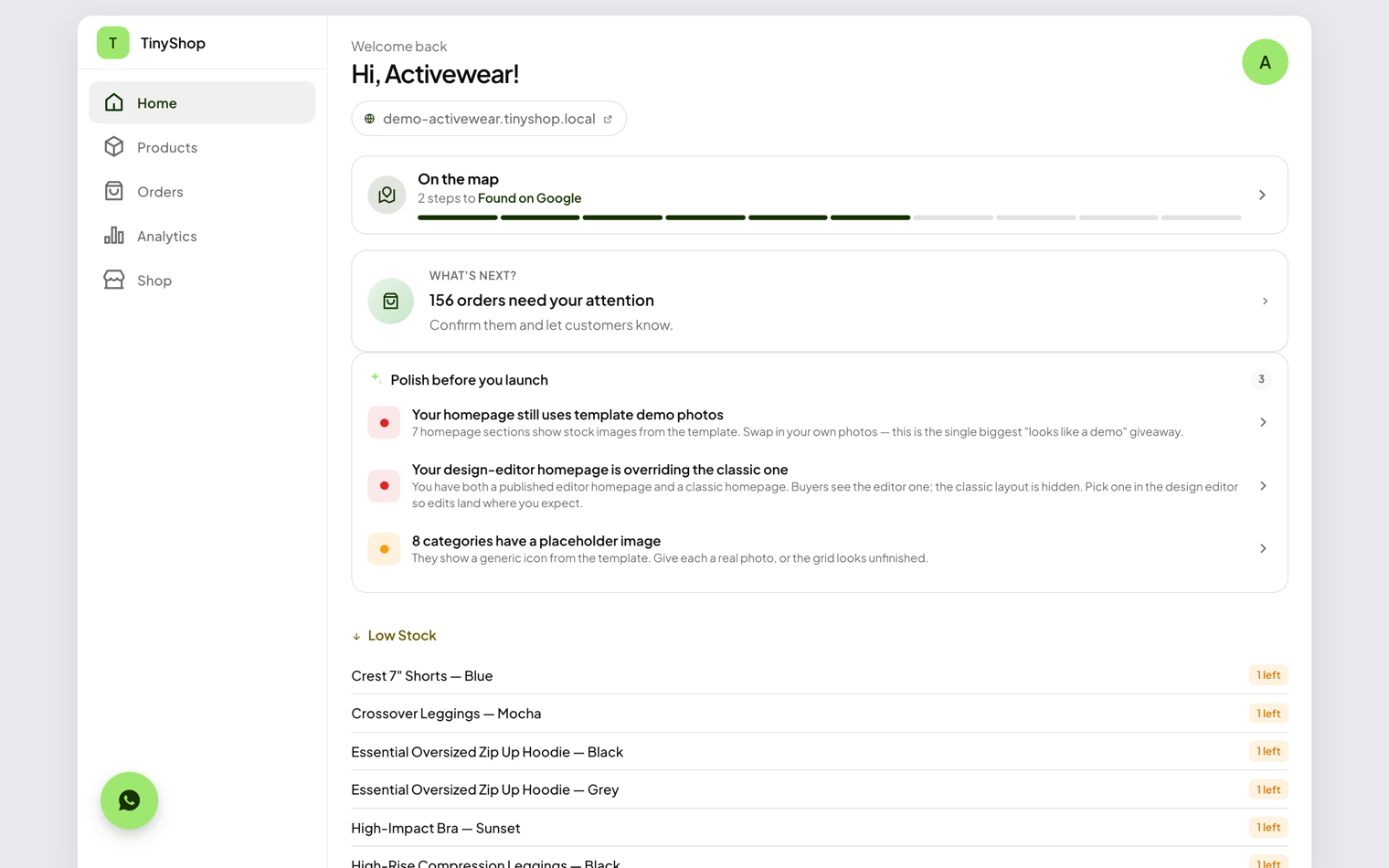
If you're using a laptop or desktop, the five main areas appear as a menu down the left-hand side instead of along the bottom. Everything works exactly the same — there's just more room to see it.
Finding your way back
Wherever you are, tap Home to return to this screen. The green shop link near the top always opens your live shop in a new tab, so you can see exactly what your customers see.